
Connect MCP
Connect AI agents
Point Cursor or other MCP clients at Switchboard for human-like automation.
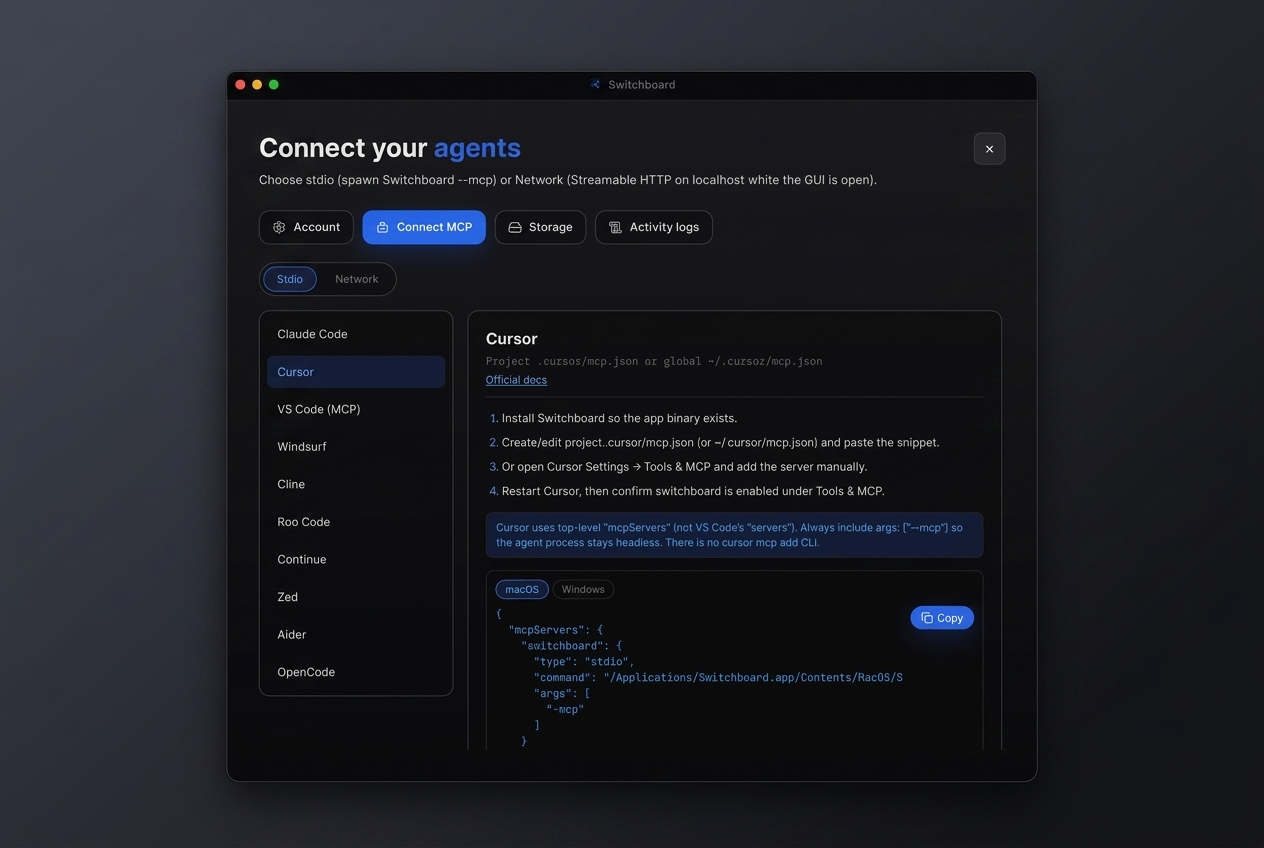
Switchboard exposes scoped automation over your social webviews through the Model Context Protocol (MCP). Open Settings → Connect MCP to copy a stdio snippet for Cursor (or another client), or enable the local network MCP server while the GUI is running.
Headless --mcp mode bridges to the GUI automation socket. Keep the desktop app open for Instagram/Threads and other tools that need live sessions. Capabilities are gated so you stay in control of what agents can do.
Draft-by-default publish tools reduce risk: agents can read screens, navigate, and stage drafts — while you still approve releases.
Steps
- 01
Open Connect MCP
Go to Settings → Connect MCP and choose Stdio (or Network while the GUI is open).
- 02
Copy the snippet
Select Cursor (or another client) and copy the mcp.json config with the --mcp flag.
- 03
Restart the agent
Save the config, restart Cursor, and keep the Switchboard GUI running for Instagram/Threads tools.
Frequently asked questions
Why do Instagram tools say GUI_NOT_RUNNING?
Those tools need the Switchboard GUI open so the automation socket exists. Start the desktop app before calling them from an MCP client.
Stdio vs network MCP?
Stdio is the usual Cursor config with a --mcp process. Network MCP is a local HTTP server on 127.0.0.1 with a Bearer token for clients that prefer HTTP.
Is automation human-like?
Yes. Hands use ghost interaction (Bezier moves, clicks, typed input) rather than raw DOM value writes, which better matches real UI flows.
Can I disable capabilities?
Capability gating exists in the product; Settings currently emphasizes Connect MCP and logs, with room for finer toggles as the UI evolves.