
Schedule
Schedule a release
Set when a Pending draft should go out while Switchboard is open.
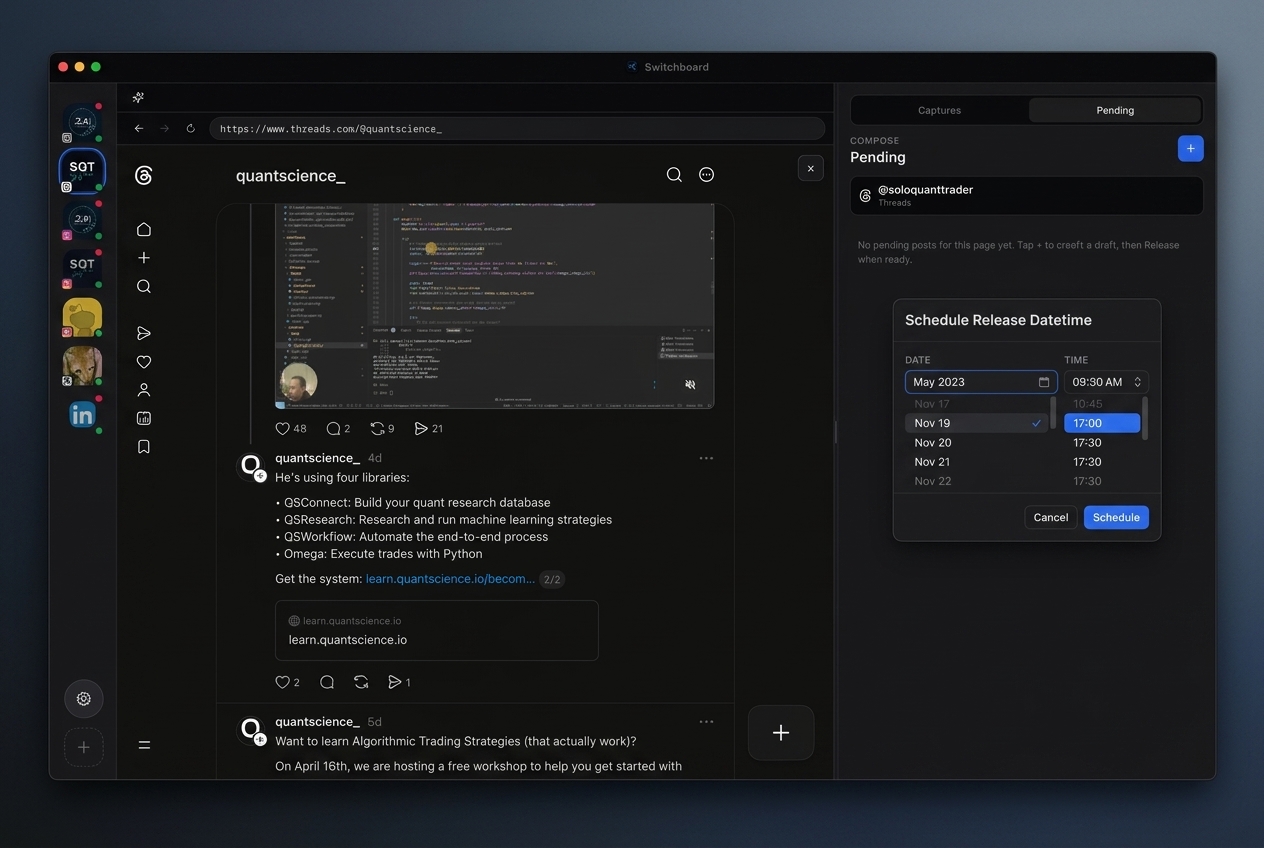
Scheduling turns a Pending draft into a timed release. Pick the calendar action on a card, confirm date and time, and Switchboard holds the draft until due.
Defaults prefer sensible spacing after your latest scheduled post so you do not stack releases on top of each other by accident. Keep the Mac app open — due drafts are checked on a short interval while Switchboard is running.
Use schedule when you want cadence without sitting at the keyboard at publish time — while still reviewing copy in Pending first.
Steps
- 01
Choose a draft
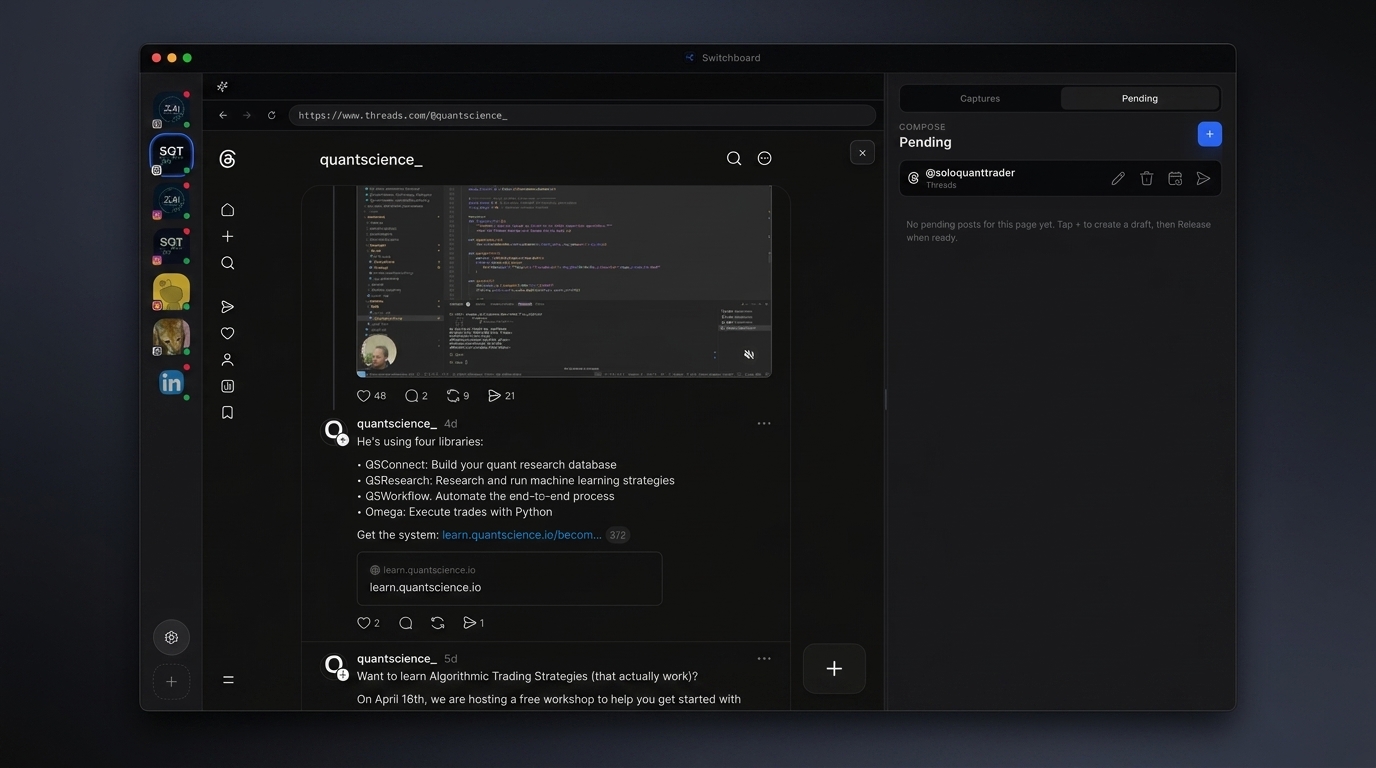
In Pending, click the calendar (Schedule release) icon on the post you want.
- 02
Pick date & time
Confirm the datetime dialog — defaults prefer spacing after your latest scheduled post.
- 03
Let it release
Keep the app open; due drafts are released automatically on a short interval.
Frequently asked questions
Does scheduling work if Switchboard is quit?
Releases run while the app is open. If Switchboard is quit at the due time, publish when you reopen and the draft is still due.
Can I change a scheduled time?
Open the schedule action again on the Pending card and update the datetime before it releases.
Is scheduling available on every platform?
Scheduling is tied to Pending drafts and the platform’s publish support in Switchboard. Check the Pending actions for the account you are using.
How is this different from native platform schedulers?
Switchboard schedules from your local Pending queue next to live sessions and captures — useful when you manage many accounts in one console.